Android Application
Android File Server App Icon

Android File Server

Transfer files wirelessly between Android, iPhone, iPad, Mac, Windows PC, and laptops over Wi-Fi. No cables, no cloud, no internet needed.

App Features & Functions

Everything you need to share files seamlessly across all your devices

Wireless File Transfer

Share files instantly over your local Wi-Fi network. No USB cables, no Bluetooth pairing, and no internet connection required. Just start the server and connect from any device.

QR Code Connection

Simply scan the QR code displayed in the app with any other device to instantly access the file server. No need to type long IP addresses manually.

Cross-Platform Access

Works with any device that has a web browser — Windows, Mac, Linux, iPhone, iPad, Android, and more. Access your files from anywhere on the same network.

Multiple File Types

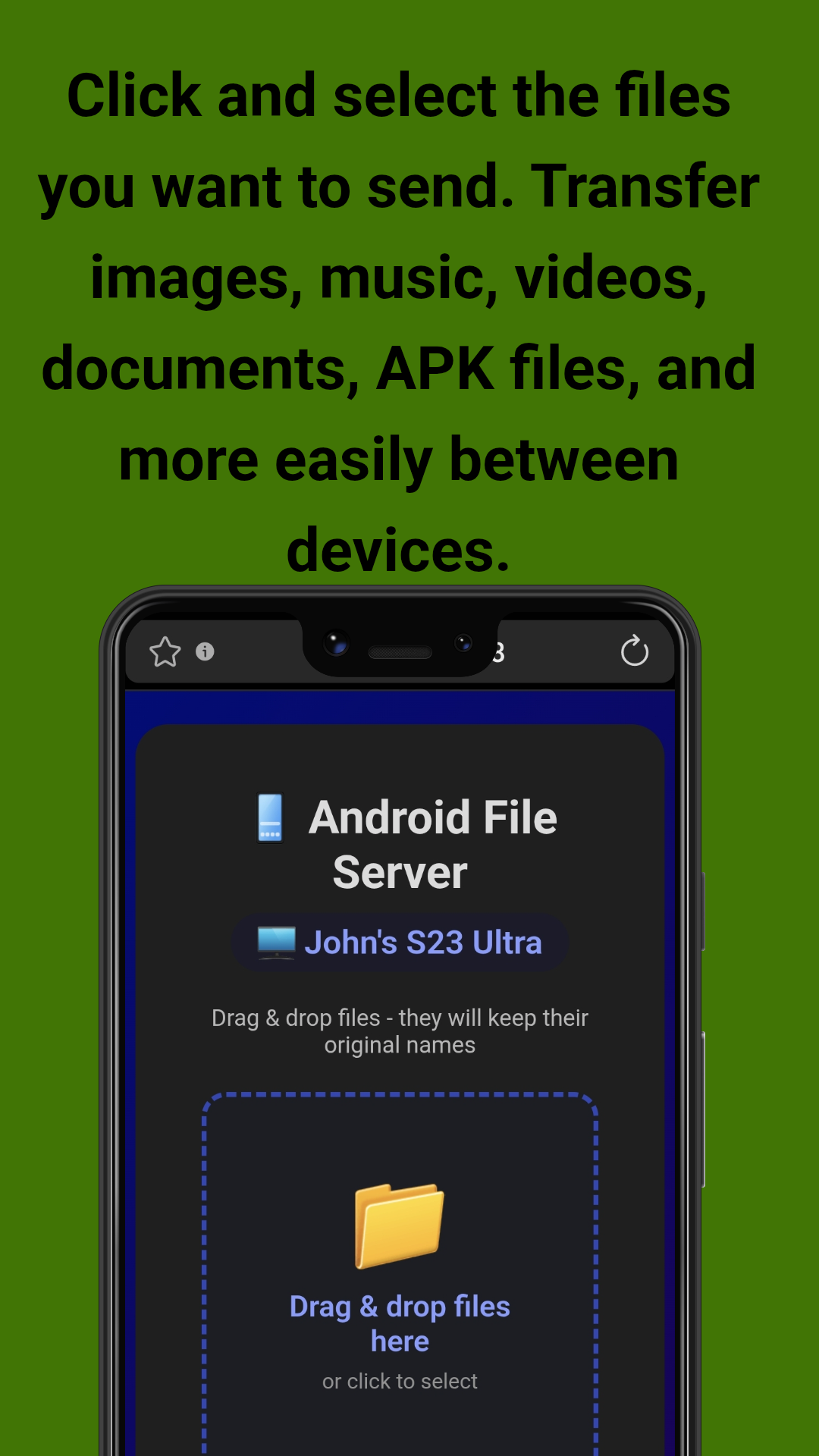
Transfer images, music, videos, documents, APK files, and many other formats. Drag and drop files directly in the browser or use the file picker.

Private & Secure

All transfers happen locally on your Wi-Fi network. No files are uploaded to the cloud or any external server. Your data stays completely private.

Lightning Fast Speed

High-speed local network transfer that outperforms cloud uploads and Bluetooth. Transfer large files in seconds, not minutes.

Why Choose Android File Server?

Key advantages that make file sharing effortless

No Cables Needed

Forget about USB cables and OTG adapters. Simply connect all devices to the same Wi-Fi network and start sharing files instantly.

No Cloud Uploads

Your files never leave your local network. No Google Drive, no Dropbox, no WeTransfer. Perfect for sensitive documents and privacy-conscious users.

Works on Any Device

Receiver doesn't need to install anything. Just open a browser and visit the IP address or scan the QR code. iPhone, iPad, Mac, PC — all supported.

Battery Friendly

Optimized for low battery usage. The server runs efficiently in the background with minimal power consumption. Optional "Keep screen on" toggle available.

No File Size Limits

Transfer files of any size without restrictions. Unlike cloud services with upload limits, your only constraint is your local network speed.

Open Source

Developed by John Irianto Susanto. The app is available on GitHub for transparency and community contributions. Clean, reliable, and ad-free.

App Screenshots

See the app in action — simple interface, powerful sharing

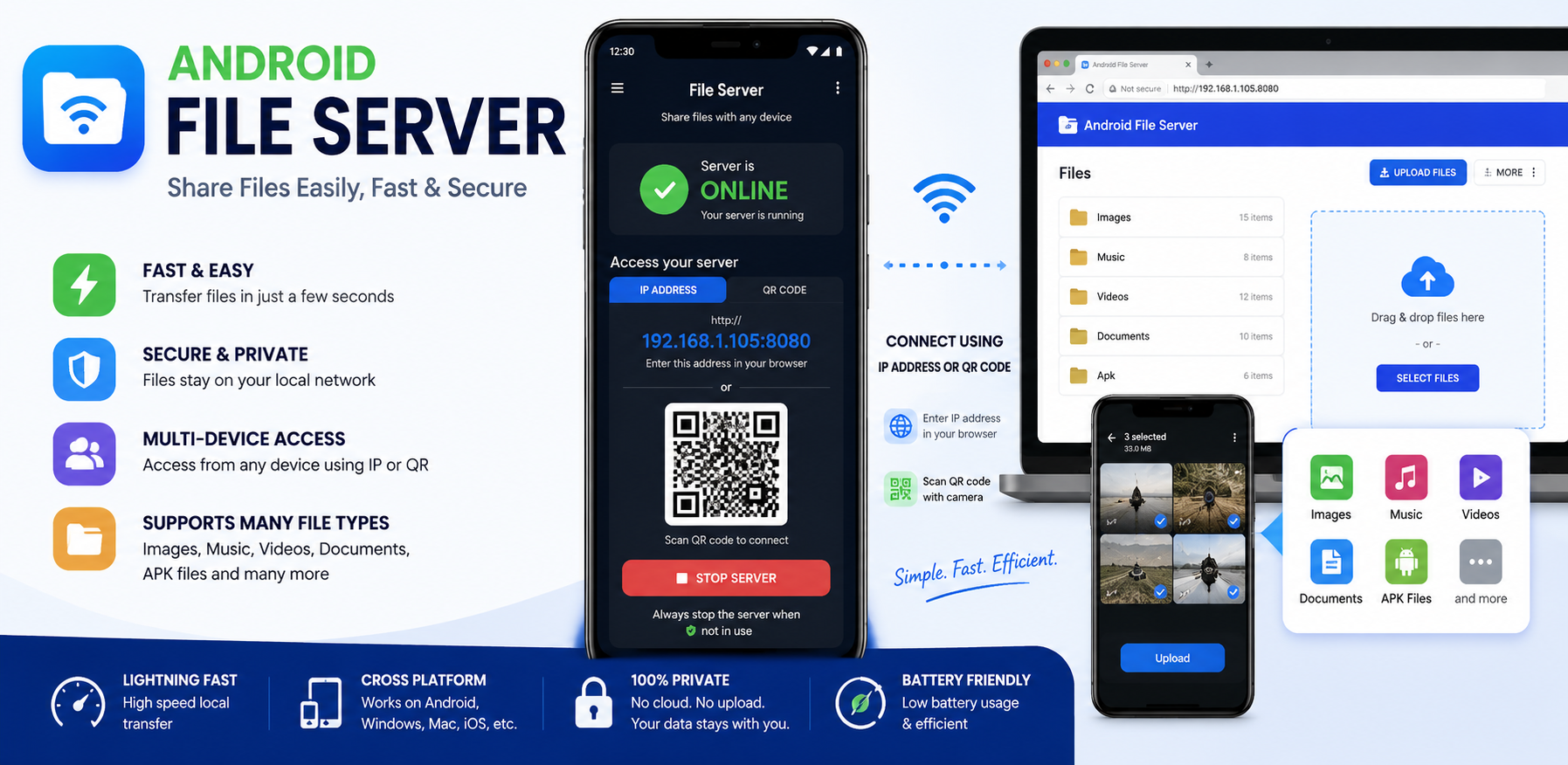
Android File Server - Feature overview showing cross-platform file sharing
Feature Overview
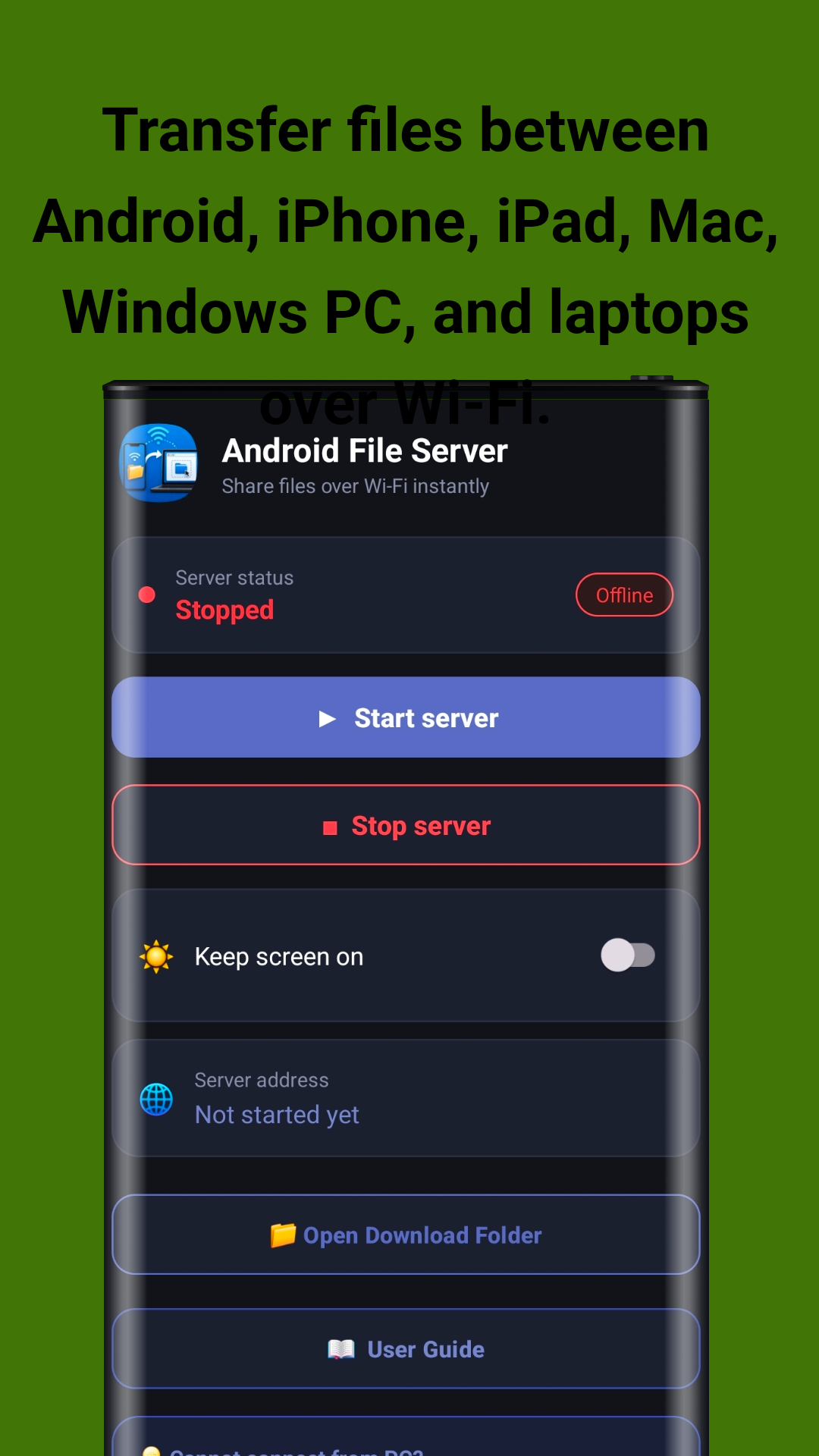
Main screen - Start and stop server with one tap
Server Control
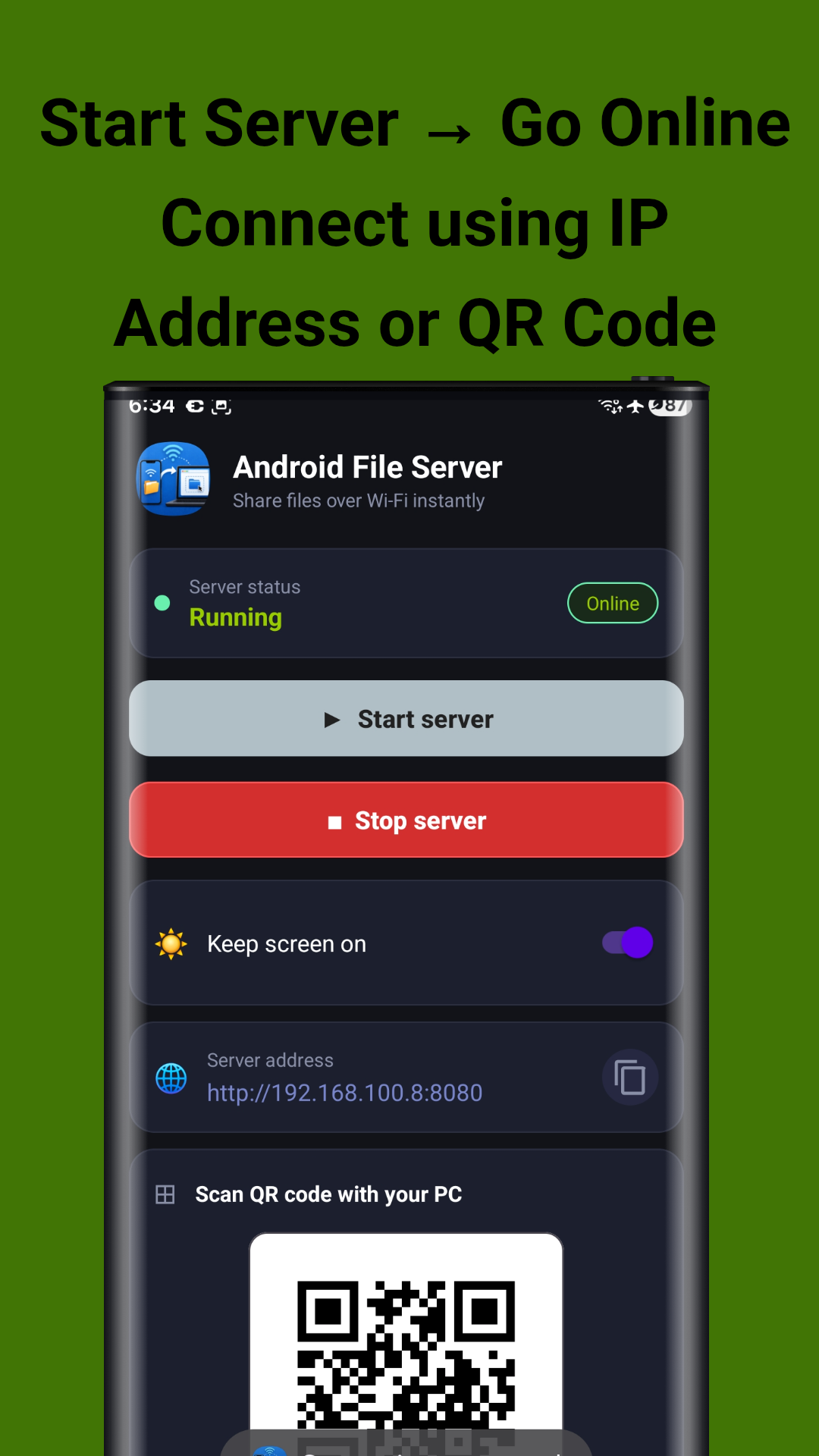
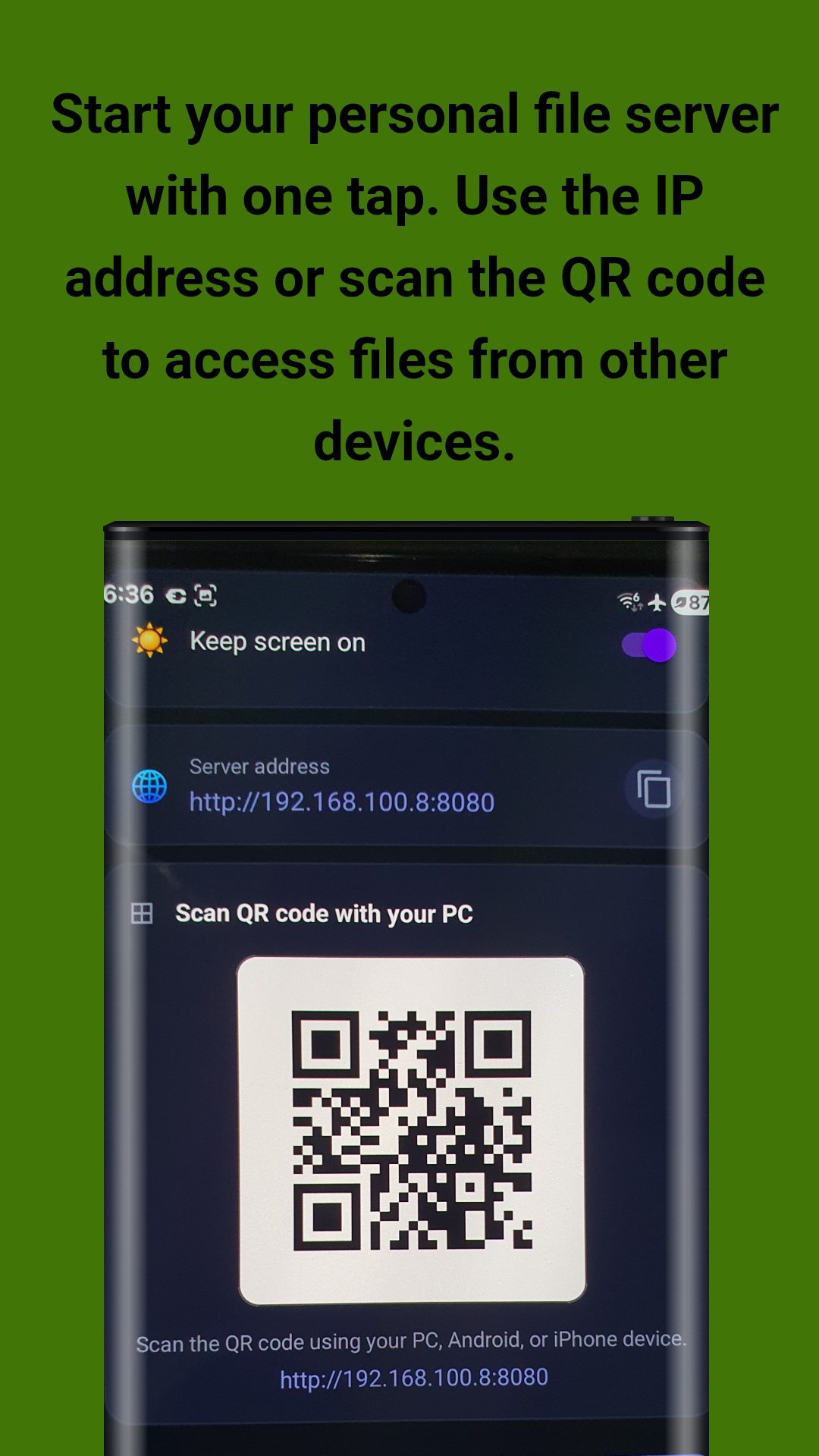
Server running with IP address and QR code
QR Code & IP Address
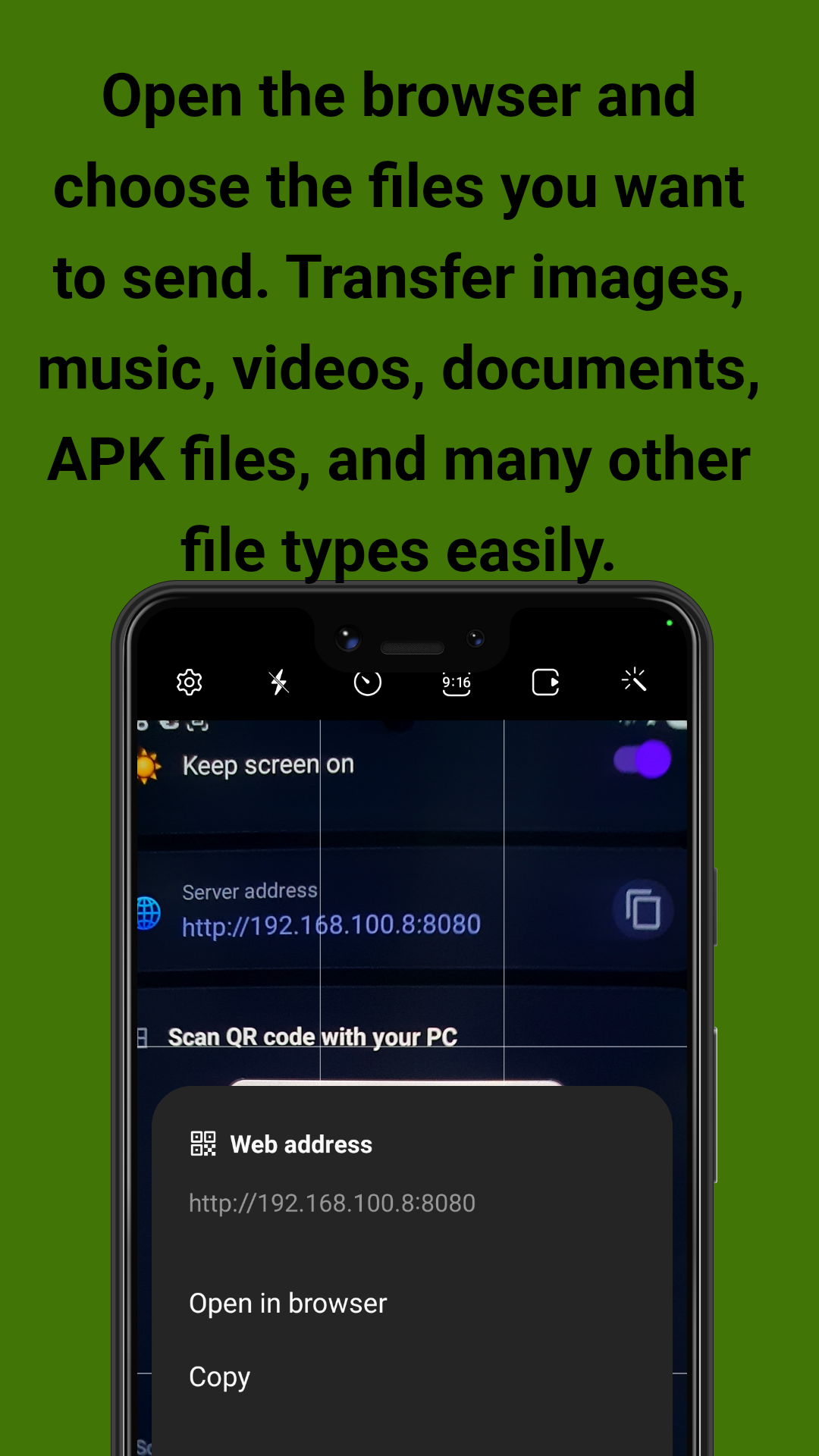
QR code scanning for quick connection
Scan to Connect
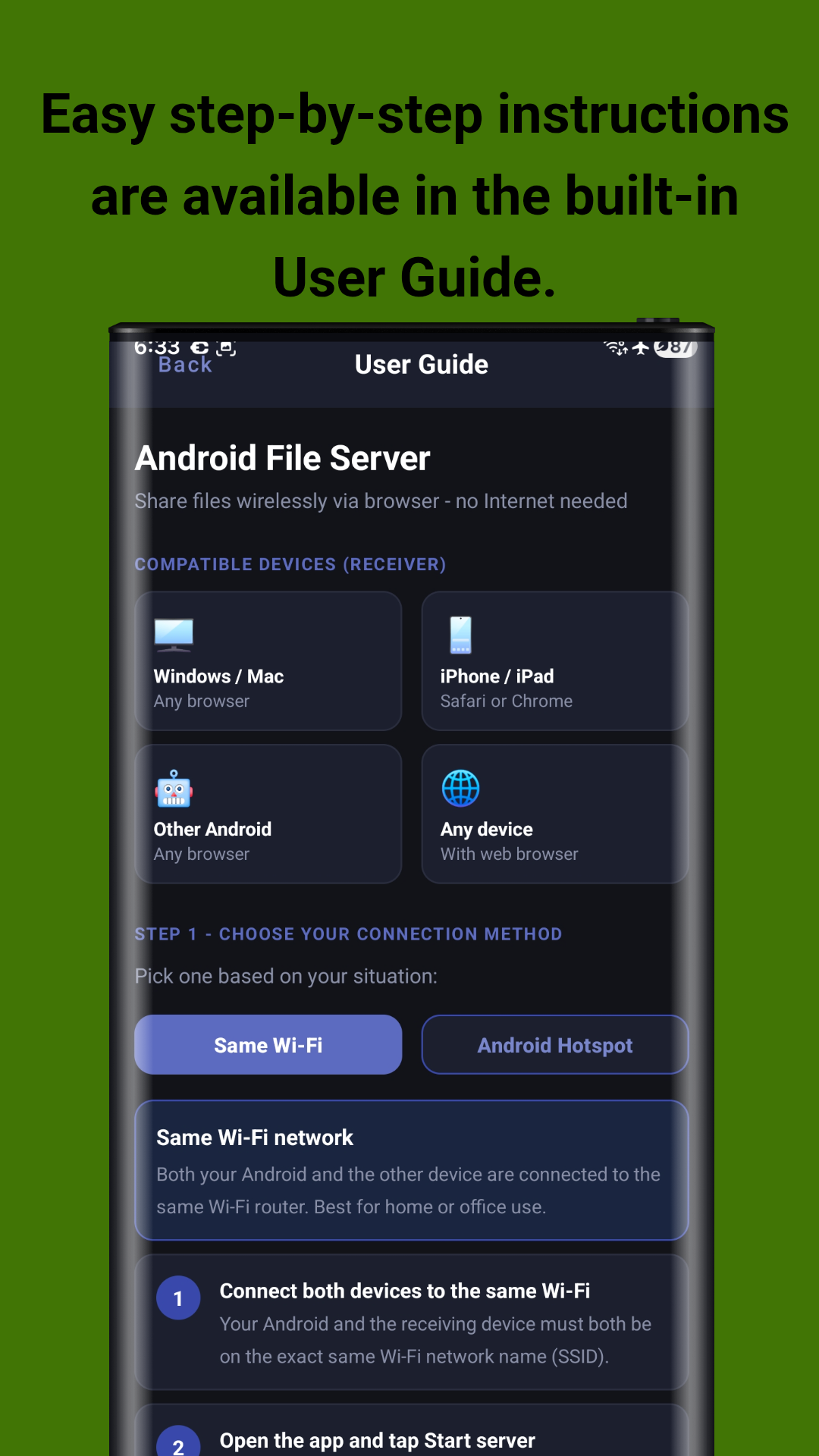
Built-in user guide with step-by-step instructions
User Guide
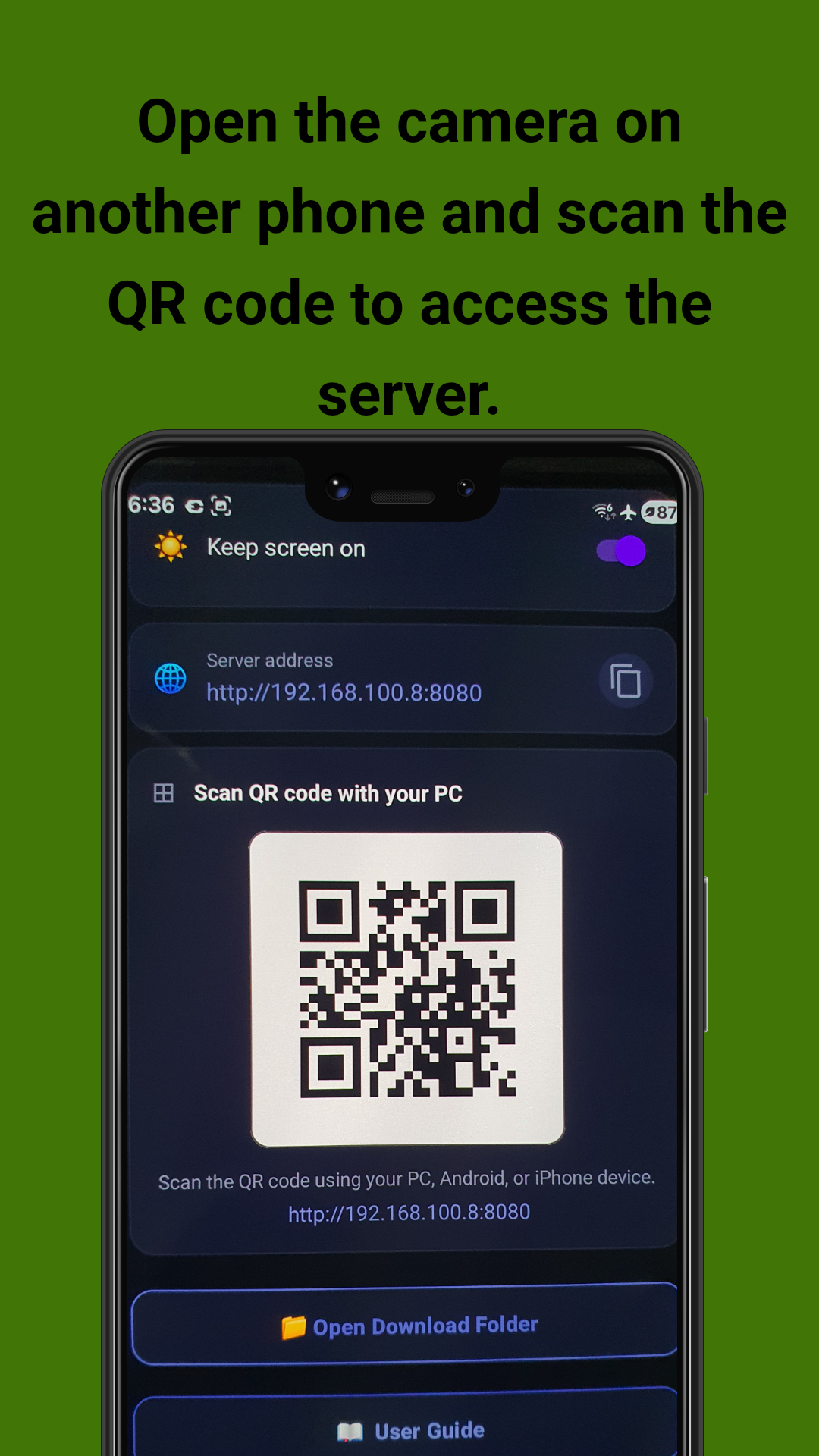
QR code scanning with another phone
Camera Scan
Web browser interface for file upload
Web Upload Interface
Drag and drop file upload area
Drag & Drop Upload

Screenshots taken on Samsung Galaxy S23 Ultra

User Guide

Step-by-step instructions to start sharing files

1

Installation & Setup

Download the app from Google Play Store or GitHub. Install and open the app. Grant the following permissions:

  • Wi-Fi / Network Access: Required to create and run the local file server.
  • Storage Access: Needed to access files for sharing and saving received files.
  • Keep Screen On (optional): Prevents the server from stopping when your screen turns off.
2

Connect Devices to Same Wi-Fi

Make sure both your Android device (sender) and the receiving device are connected to the same Wi-Fi network. This can be:

  • Your home or office Wi-Fi router.
  • Android Hotspot (mobile hotspot from the sender device).
  • Any shared local network connection.
3

Start the Server

Open the Android File Server app and tap the "Start Server" button. The app will:

  • Display your device's local IP address (e.g., http://192.168.1.100:8080).
  • Generate a QR code for quick connection.
  • Show server status as "Running" with a green indicator.
  • Enable "Keep screen on" toggle if you want the server to stay active.
4

Connect from Another Device

On the receiving device (PC, Mac, iPhone, iPad, or another Android), do one of the following:

  • Scan QR Code: Open the camera app and scan the QR code displayed on your Android device.
  • Enter IP Address: Open any web browser and type the IP address shown in the app (e.g., http://192.168.1.100:8080).
  • Copy & Share: Tap the copy button next to the IP address and share it via messaging apps.
5

Transfer Files

Once connected via the browser, you can:

  • Upload to Android: Drag and drop files into the browser window or click "Select Files" to choose from your computer.
  • Download from Android: Browse the shared folders and click on any file to download it to your device.
  • Multiple Files: Select multiple files at once for batch transfer.
  • All File Types: Images, videos, music, documents, APKs, and more are supported.
6

Stop the Server & Troubleshooting

When done, tap "Stop Server" to close the connection. If you encounter issues:

  • Can't connect: Ensure both devices are on the exact same Wi-Fi network (same SSID).
  • Firewall blocking: Disable firewall temporarily or allow port 8080 on your router.
  • Server stops unexpectedly: Enable "Keep screen on" toggle or disable battery optimization for the app.
  • Slow transfer: Move closer to the Wi-Fi router for better signal strength.

Get Android File Server

Available for free on Google Play Store and GitHub. Start sharing files wirelessly today.

Get it on Google Play
View source on GitHub

Developed by John Irianto Susanto